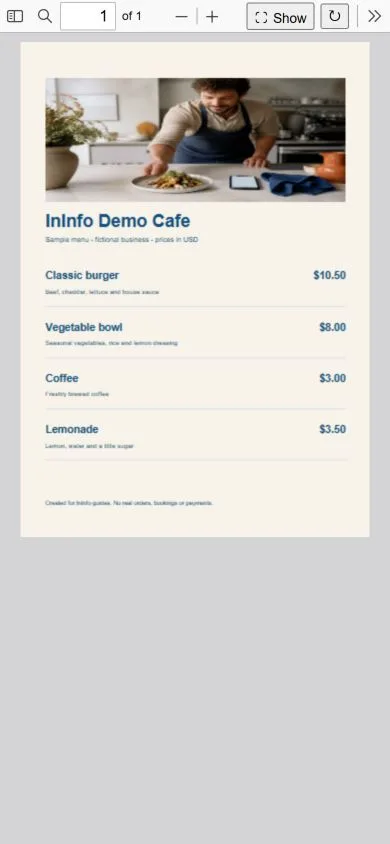
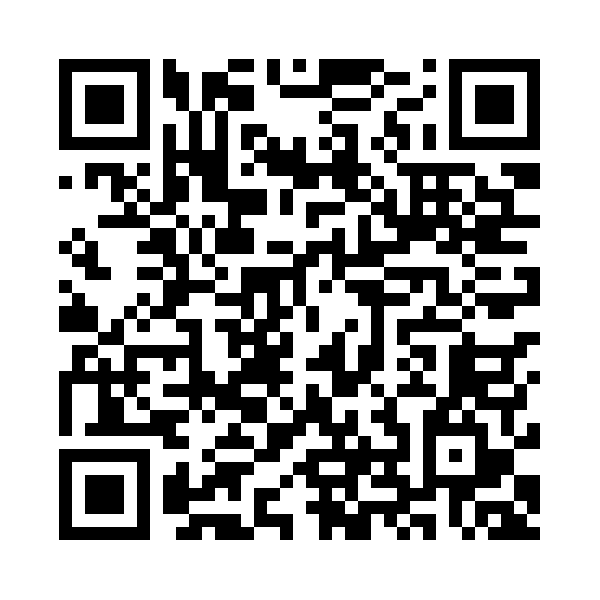
 Scan to open the menuWorking QR for the demo page
Scan the code. Read your menu.
This is the real InInfo viewer with a menu for the fictional Nook cafe. The QR beside it opens the published cafe example.
- Tap “View file” to open the English demo menu with sample dollar prices.
- Zoom in to read the dish ingredients. The PDF keeps its layout.
- Return to the cafe page: directions, opening hours and contacts are beside the menu.
Your menu is ready. Give it a link.
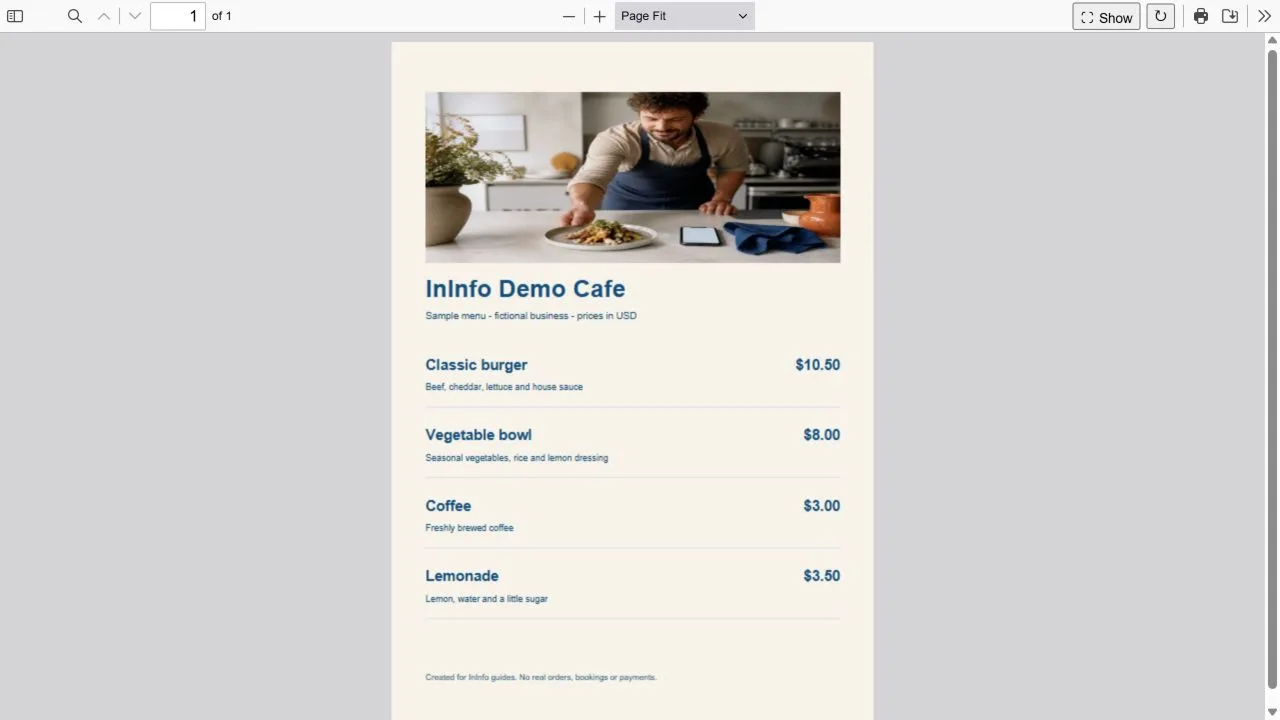
You have done the photos, layout and prices — use that file. A guest scans the table QR, taps “View file” and reads the menu in the browser. Saving the PDF to the phone is optional. Zoom in on small print; the download button stays there for anyone who wants a copy.
Directions and a call beside the menu
Add opening hours, a map and a floating call button. Send the same link to someone who has never visited: they can choose lunch and find your entrance. A cafe name, PDF and contact are enough for the first version.
When you want to take orders too
Add a catalog with individual dish photos and a basket. This is an extra step: you fill in catalog items separately, and InInfo does not turn the PDF into cards automatically. Start with the file you have; build the catalog when you need it.
Start with the PDF you already have
The button opens a short template with a cafe name, file block, map and contacts. Replace the demo details after login. Upload your file after saving the page for the first time.
- Open the template below. Sign up or log in.
- Enter your name, page address and contacts. Save and publish: attaching a file requires a saved page.
- Upload your PDF in the file block, then save and publish again.
- Open the page on a phone, check “View file” and scan its QR before printing.
The editor and publishing are free. No coding required.
Before you start
Is it free?
Registration, creating a page and publishing are available without payment or a bank card. Pages have an InInfo credit at the bottom. Check your account for its current features and limits.
What happens when I click the button?
After sign-up or login, a new draft opens from the example. It is not published automatically. Replace the fictional business details and contacts with your own, then save the page.
Is there a PDF size limit?
The editor accepts files smaller than 20 MB. The browser downloads PDF data over the internet to display it, but you do not have to save a file to the phone. The document keeps its fixed layout; small text may need zooming.
Check before publishing
Before you share
- Check the public page outside the editor, on both a phone and a computer.
- Verify prices, page order and any contact information in the PDF.
- Keep the page address unchanged when updating the menu; see the next guide.