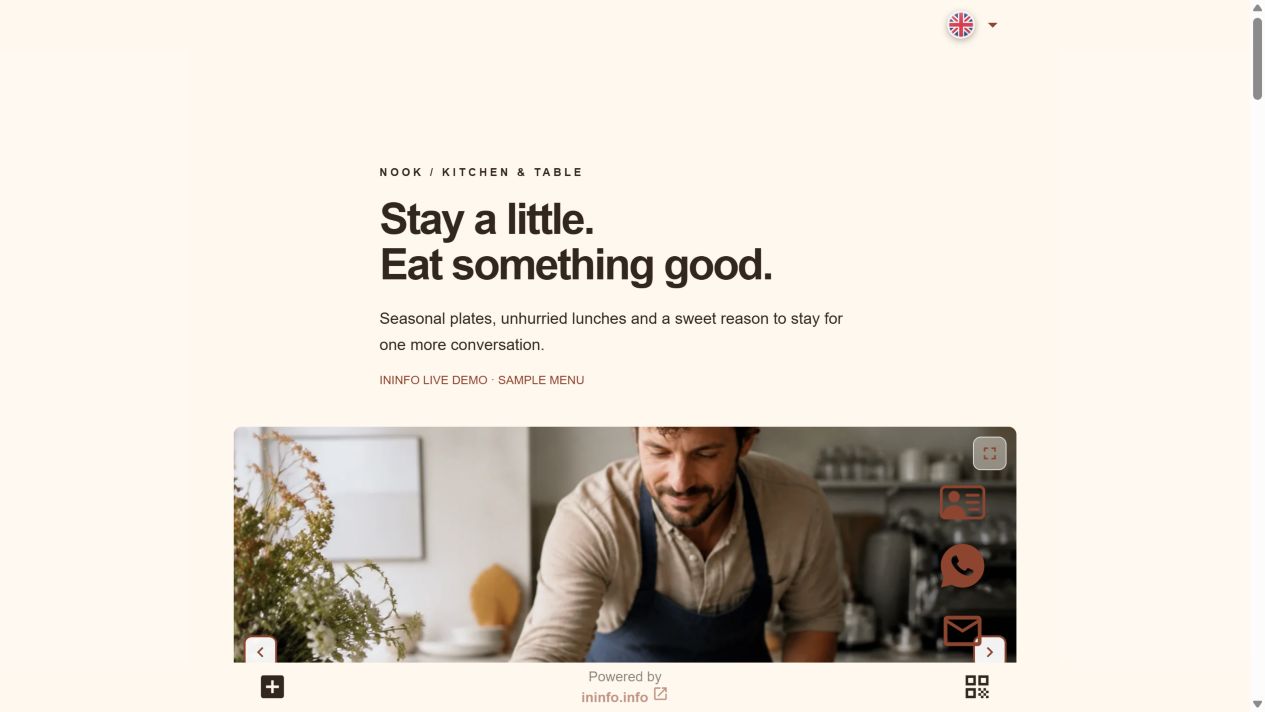
New price. Same address.
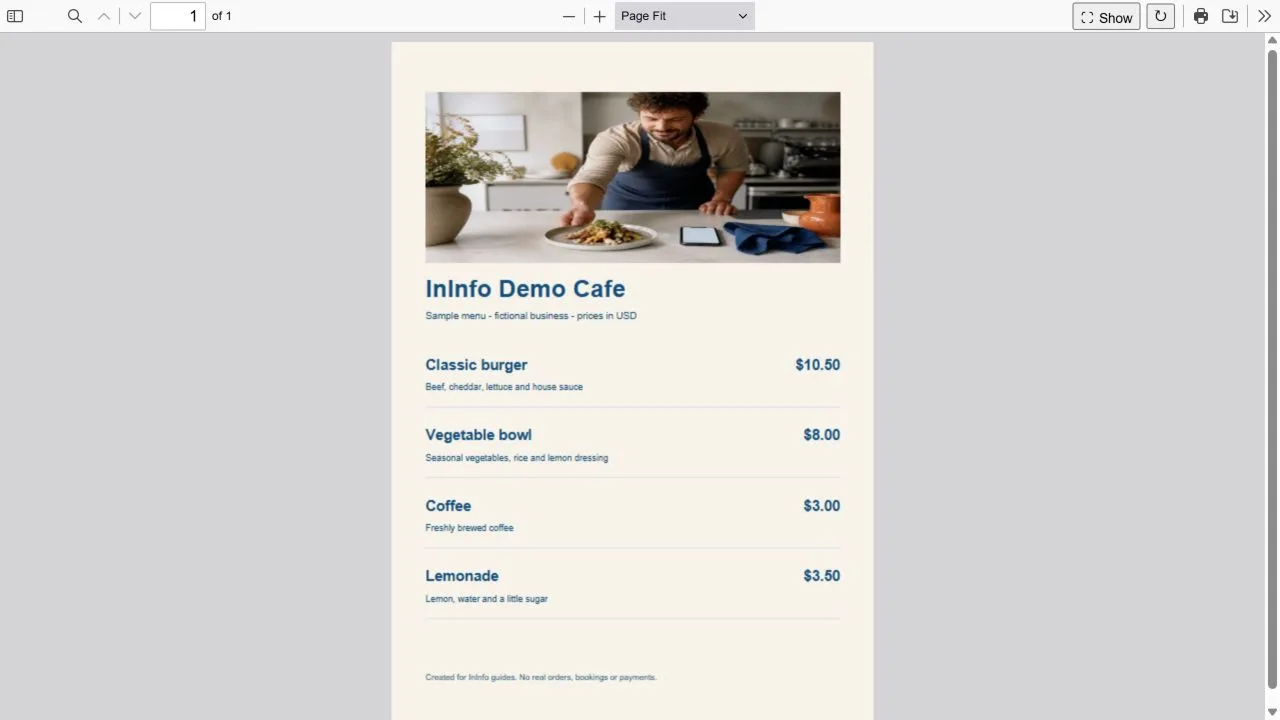
Only the classic burger price differs between these two sample PDFs. The cafe page already has the new file. You can see the change below without downloading both menus.
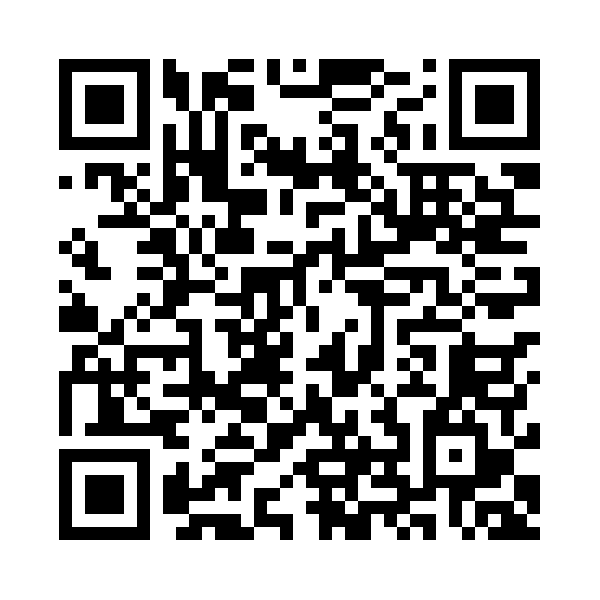
Same address:
ininfo.info/ininfo-demo-nook
- The burger was $9.50 in the old menu and is $10.50 in the new one.
- Open “View file” on the cafe example and check the new price.
- The QR leads to the cafe page. Its content can change while the address stays the same.
First check where the printed QR leads
You can keep a code if you control the content at the address it opens. For your InInfo page, leave the public address unchanged. If the QR opens another site or the old file directly, InInfo cannot redirect it: you must be able to update the content at that address.
The burger costs more. Edit the burger.
Change the price on that catalog card. For a PDF, replace the file in the same block, then save and publish. Using both formats? Update both: changing the PDF does not change the catalog automatically.
One edit for everyone who opens the link
The table QR, profile link and message to a regular can all open the same page. After publishing, check the original link. If the browser still shows the previous PDF, reload the page and check again.
Updating a menu or making your first one?
Choose your situation. Edit the existing page to update a menu; start with the short PDF template if you are new.
Already have an InInfo menu?
- Check the address in the printed QR and open that page in your account.
- Replace the PDF in its existing block or edit the catalog cards.
- Save and publish without changing the address. Check the new menu through the original QR.
Creating your first menu?
- Open the short template below and enter your cafe details.
- Save the page first, then upload the PDF and publish again.
- Get the page QR. Keep the same address for future changes.
The editor and publishing are free. No coding required.
Before you start
Is it free?
Registration, creating a page and publishing are available without payment or a bank card. Pages have an InInfo credit at the bottom. Check your account for its current features and limits.
What happens when I click the button?
After sign-up or login, a new draft opens from the example. It is not published automatically. Replace the fictional business details and contacts with your own, then save the page.
Is there a PDF size limit?
The editor accepts files smaller than 20 MB. The browser downloads PDF data over the internet to display it, but you do not have to save a file to the phone. The document keeps its fixed layout; small text may need zooming.
Check before publishing
Before you share
- Check that the original QR still opens exactly the same public address.
- Compare the new PDF with the menu your staff uses.
- Update a printed price list separately if your business also provides one.